Build a DIY Jade for €15 and set up Blockstream multisig
A DIY Jade from a €15 LilyGO board: build it, connect it to the Blockstream app and set up 2-of-2 multisig with 2FA. Every step, with screenshots.
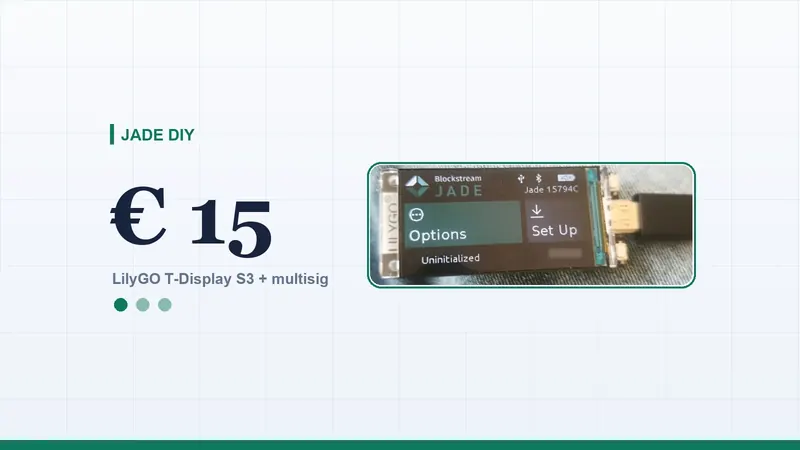
I wanted to know how far you can get with a Jade that costs almost nothing. So I built one from a LilyGO T-Display S3 (about €15) with Blockstream's official Jade firmware, connected it to the Blockstream app on a Mac and set up a 2FA Protected (2-of-2 multisig) account with an authenticator app. Then I sent a small test amount to it. This is the whole process, tested on 19 October 2026.
At a glance
- Board: LilyGO T-Display S3, ESP32-S3 chip, about €15
- Firmware: Jade 1.0.41 (commit e6a51ab), built from the official repository
- Works with: Blockstream app 3.6.0 on macOS, over USB
- Account: 2FA Protected, multisig 2-of-2
- Two-factor: authenticator app, threshold of one satoshi
- Test deposit: 0.0001 BTC, from unconfirmed to confirmed
The six steps are: build and flash, set the PIN and write down the recovery phrase, connect to the app, add a multisig account, turn on two-factor authentication and receive a first test amount.
Which platforms the app runs on
The Blockstream app is available for mobile and desktop, so you can add a multisig account on the device you prefer.
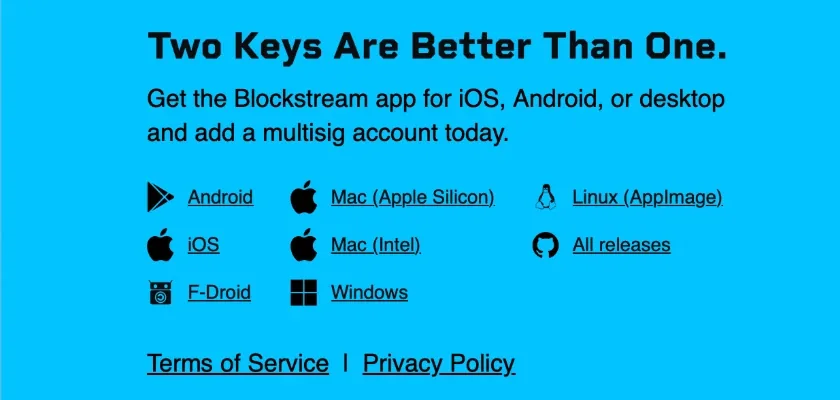
Blockstream app downloads: Android, iOS, F-Droid, Mac (Apple Silicon and Intel), Windows and Linux (AppImage). Source: blockstream.com/app/multisig.
This guide uses the Blockstream app for macOS (Apple Silicon), version 3.6.0, with the Jade connected over USB.
What you need
- LilyGO T-Display S3. 1.9 inch screen, 170×320 pixels. Mine is marked "T-Display S3 22-8-2 V1.2".
- A USB-C data cable. A power-only cable will not work for flashing.
- A computer. macOS or Linux to build the firmware (the Jade repository also offers a Docker build environment). The Blockstream desktop app runs on macOS, Windows and Linux. I used a Mac with Apple Silicon.
- Blockstream app 3.6.0, from blockstream.com/app or the GitHub releases.
- Paper and a pen for the PIN and the recovery phrase.
How to recognise the right board: the silkscreen says T-Display S3 with revision V1.2, the chip is an ESP32-S3, the label reads MODEL: T-Display-S3, and a green power LED lights up when it gets USB power. The original TTGO T-Display is a different board, with a smaller screen and an ESP32 chip. Use the matching build profile for whichever you have.
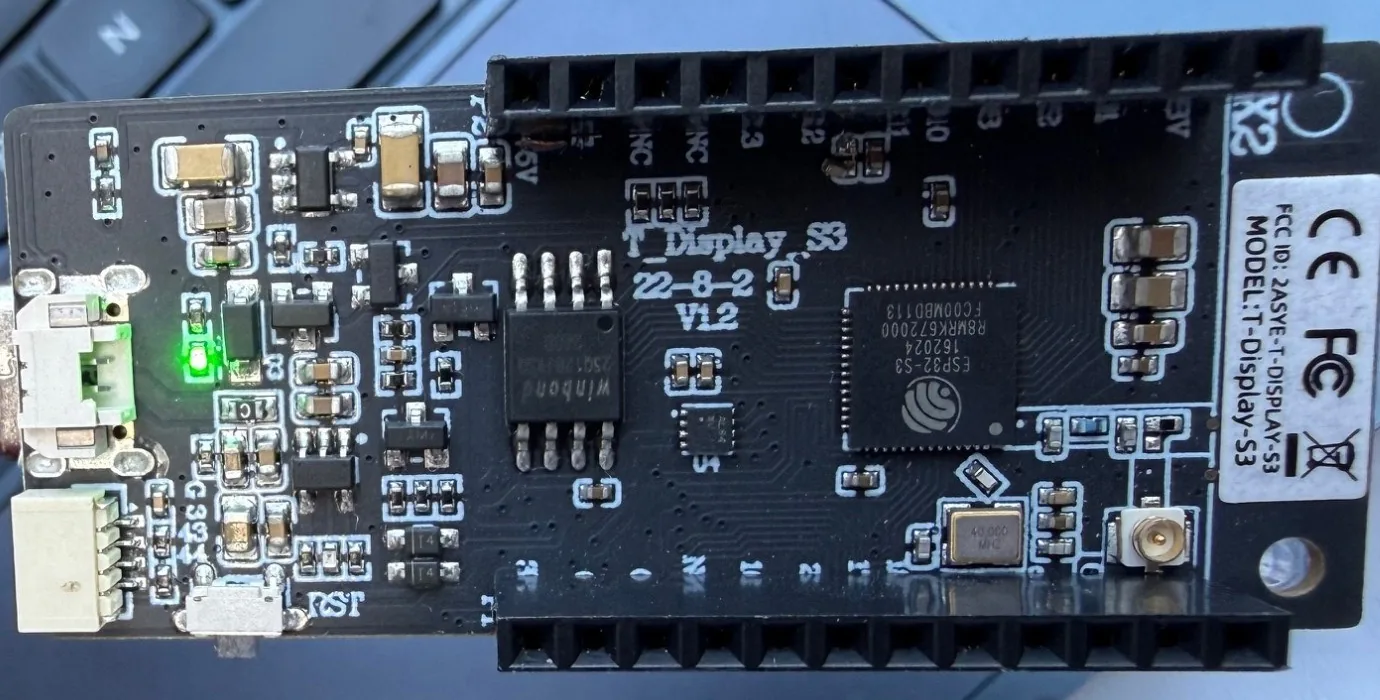
The back of the board.
Other DIY boards you can use
The T-Display S3 is only one option. The Jade repository ships build profiles for several low-cost boards. I built and tested the T-Display S3.
More profiles exist for the M5Stack FIRE, Core2 and CoreS3, the Waveshare touch displays and the LilyGO T-Watch S3. Prices and details come from the Jade DIY guide, so check the DIY README for the current list before you order.
Step 1: Build and flash the firmware
I used the official Blockstream/Jade repository at firmware 1.0.41, ESP-IDF 5.5.5 and Python 3.12. The repository ships a build profile for this board, so nothing has to be edited.
Install the toolchain
git clone --depth 1 --branch v5.5.5 --recursive --shallow-submodules https://github.com/espressif/esp-idf.git
cd esp-idf
./install.sh esp32s3
. ./export.sh
pip install cmake ninja cbor2 pycryptodome wallycore
Build
git clone --recursive https://github.com/Blockstream/Jade.git
cd Jade
cp configs/sdkconfig_display_ttgo_tdisplays3.defaults sdkconfig.defaults
idf.py set-target esp32s3
idf.py all
Flash
- Hold BOOT, plug in the USB cable, then release BOOT. The screen stays black.
- Run
idf.py -p /dev/cu.usbmodemXXXX flash. - Unplug and replug the cable. The Jade menu appears.
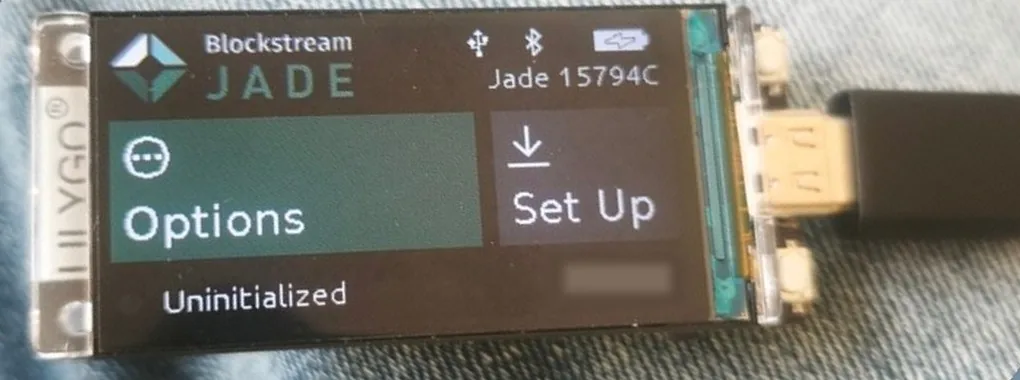
Right after flashing: the Jade home screen reads Uninitialized, with Options and Set Up.
On my Mac, ESP-IDF did not provide cmake and ninja, so I installed both with pip inside the ESP-IDF environment. The DIY README also warns never to flash DIY firmware onto an official Jade, or the reverse.
Step 2: Set the PIN and create the wallet
The Jade asks for a connection method (USB or Bluetooth) and then waits for the companion app. The PIN and the recovery phrase are created on the device itself, with its two buttons.
- Choose Begin Setup on the Jade.
- Pick a six-digit PIN and confirm it.
- Write down the recovery phrase on paper.
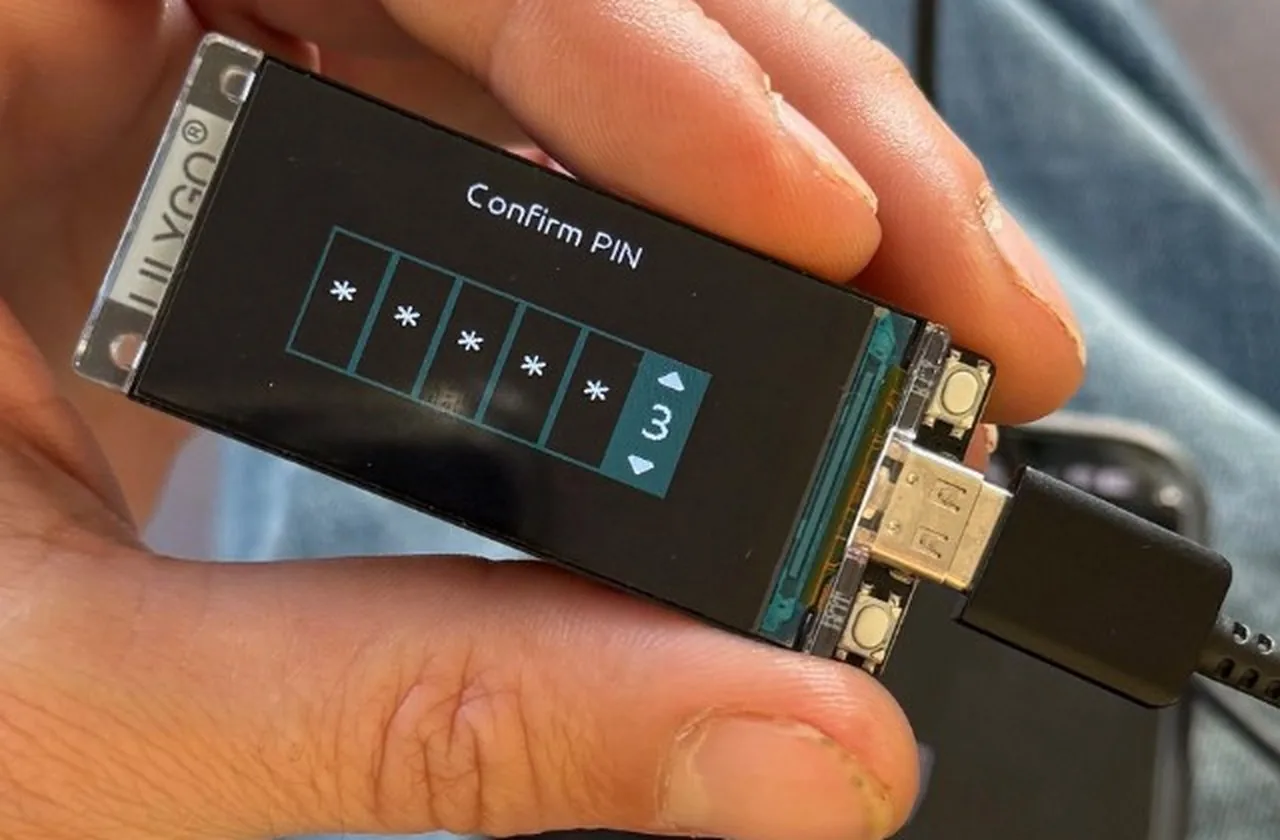
Confirming the PIN on the Jade with the two side buttons.
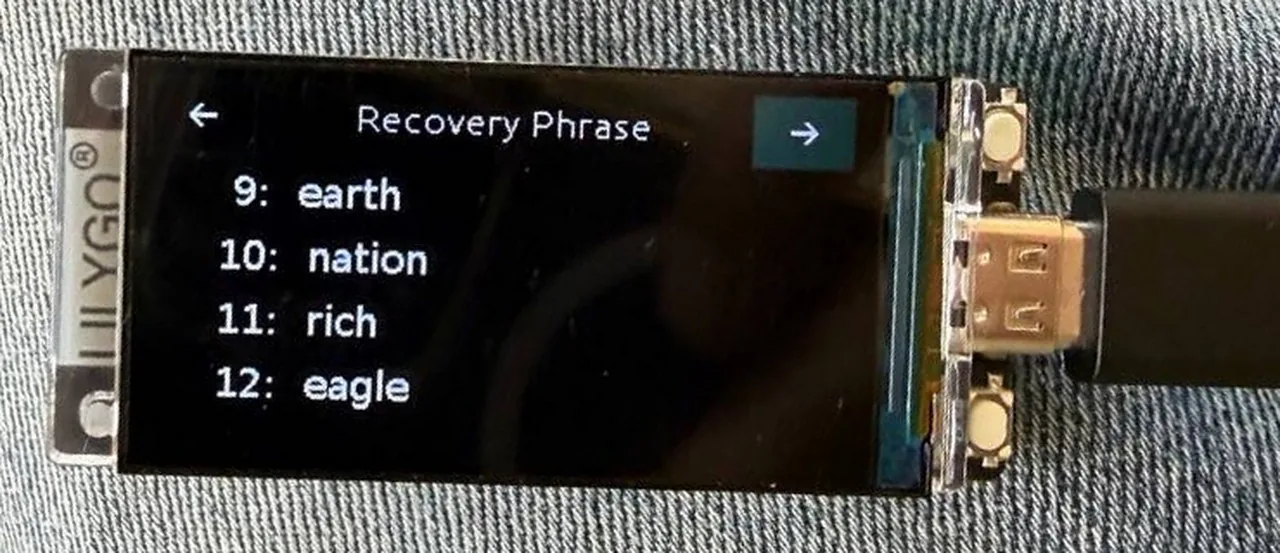
The Jade shows the recovery phrase four words at a time. Write them down on paper.
Both photos come from an earlier test setup. That wallet has since been wiped and never held any funds.
I started this step from the Mac with the Jade Python client over USB. The PIN screen appeared on the device and setup completed normally:
# run from the Jade repository, with the ESP-IDF environment active
from jadepy import JadeAPI
jade = JadeAPI.create_serial('/dev/cu.usbmodemXXXX')
jade.connect()
jade.auth_user('mainnet')   # the PIN screen now appears on the Jade
Step 3: Connect to the Blockstream app
Plug the Jade into the Mac and open the Blockstream desktop app. The Jade shows up as a hardware device. A DIY board is not a retail Jade, so the app's genuine check does not pass it as one; continue as a DIY device. After you enter the PIN on the device, the app shows Connected and loads the wallet.
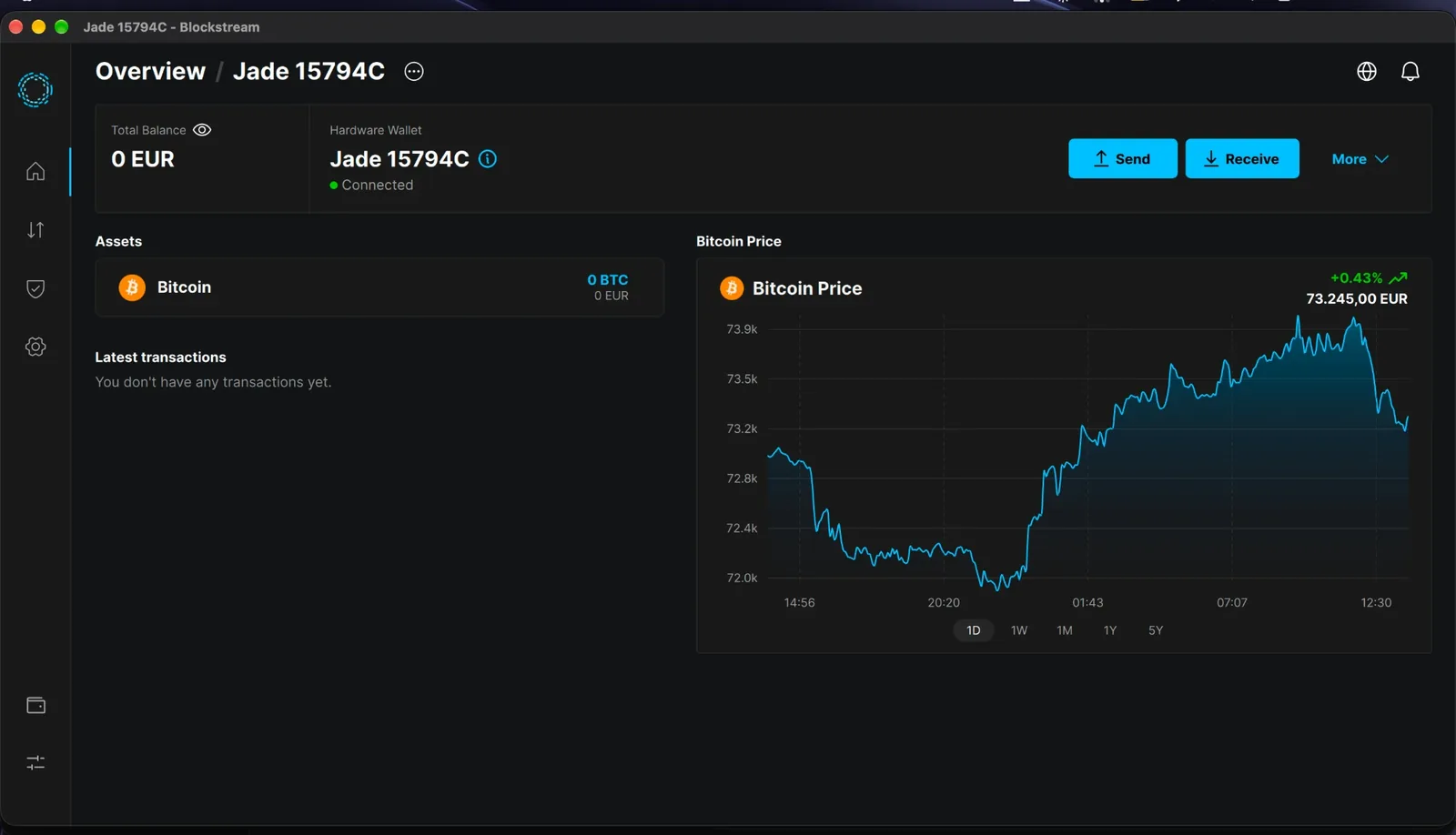
The Blockstream app on macOS with the DIY Jade connected.
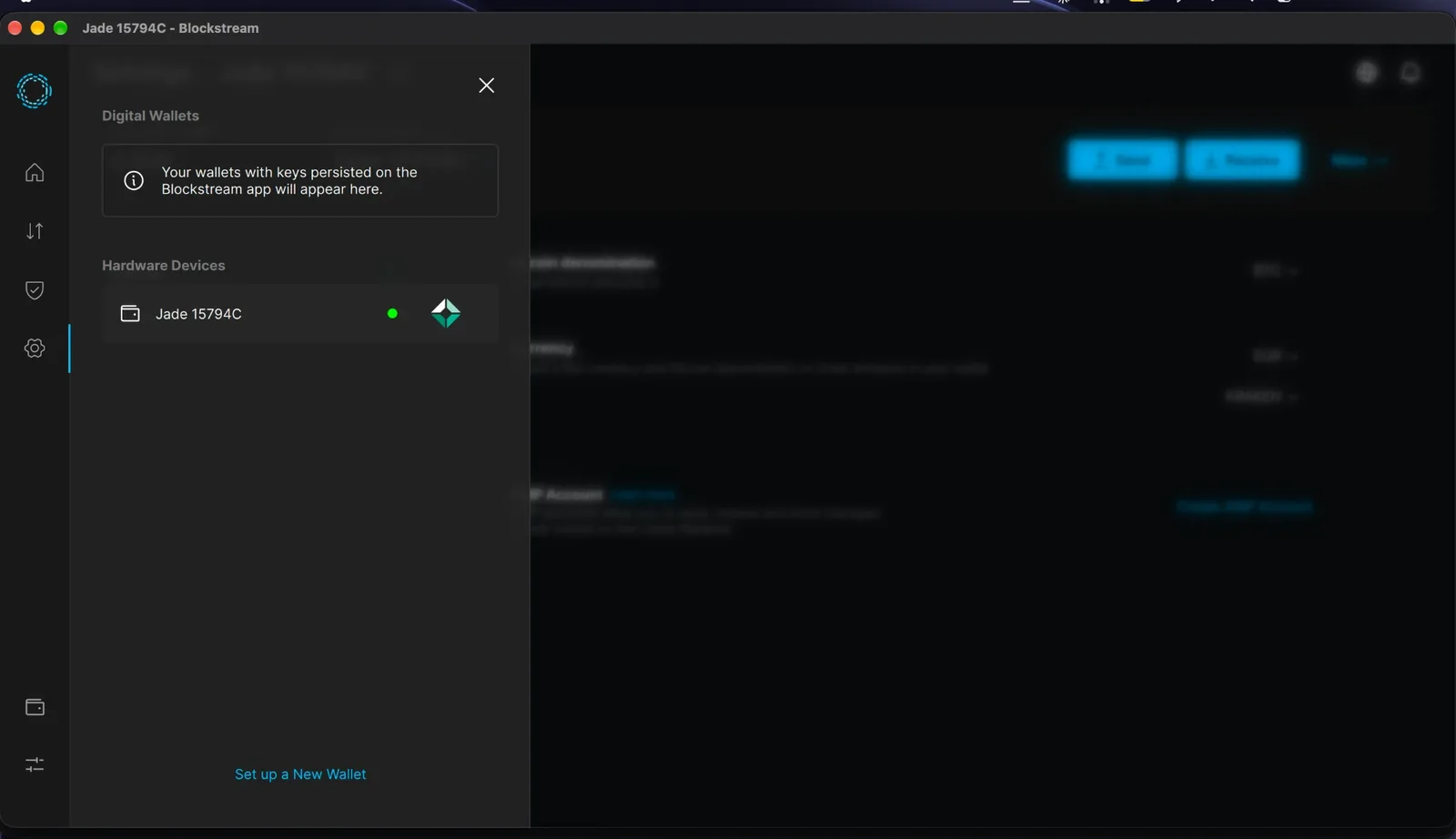
The Jade listed under Hardware Devices, with a green dot while connected.
The desktop app recognises the DIY Jade over USB and treats it as a normal hardware wallet.
Step 4: Create the multisig account
- Open the menu next to the wallet name and choose Add New Account.
- Keep Bitcoin as the asset.
- Pick 2FA Protected. It is the multisig 2-of-2 option, aimed at active spenders.
- Confirm on the Jade if it asks.
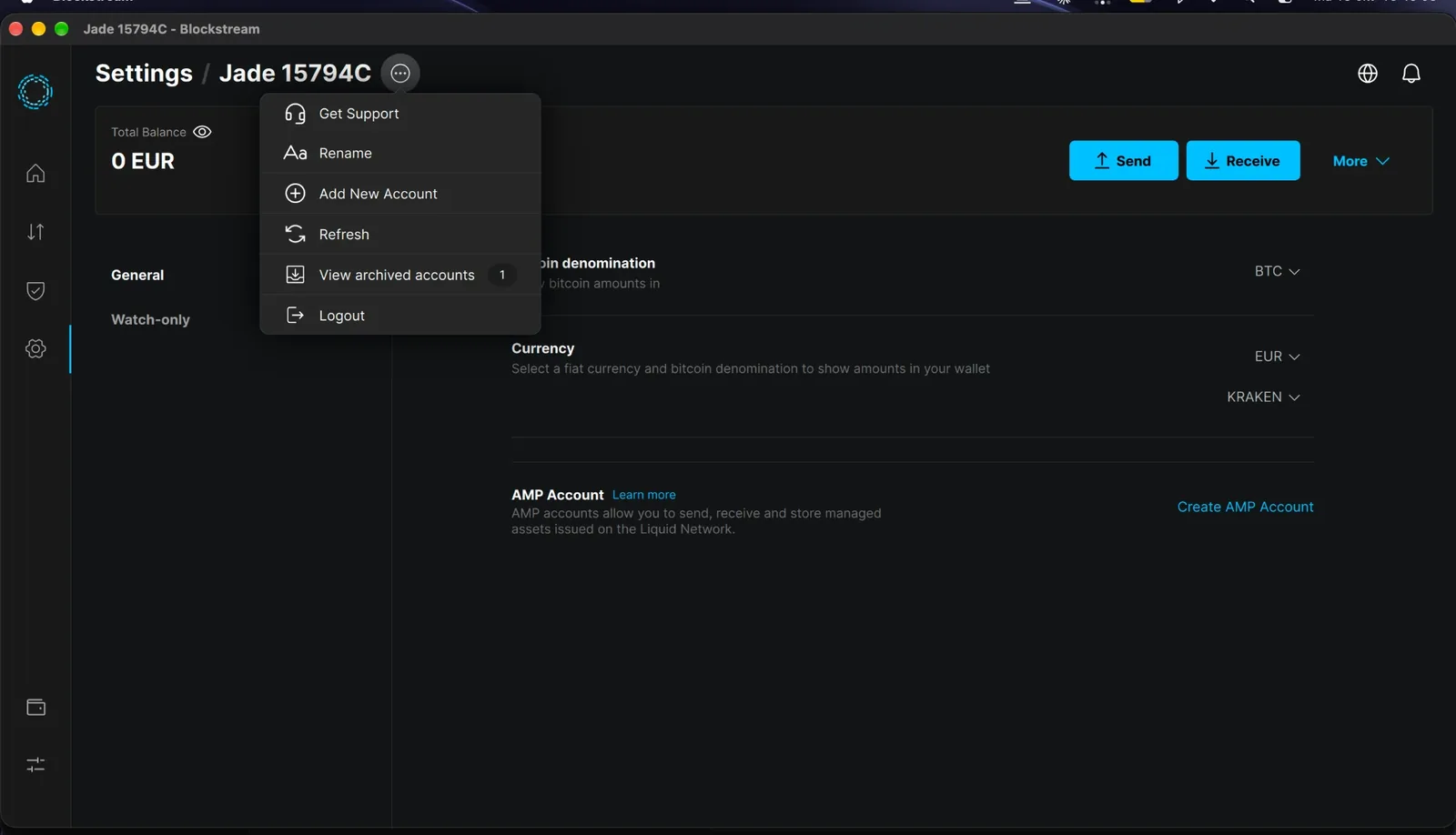
The menu next to the wallet name. Choose Add New Account.
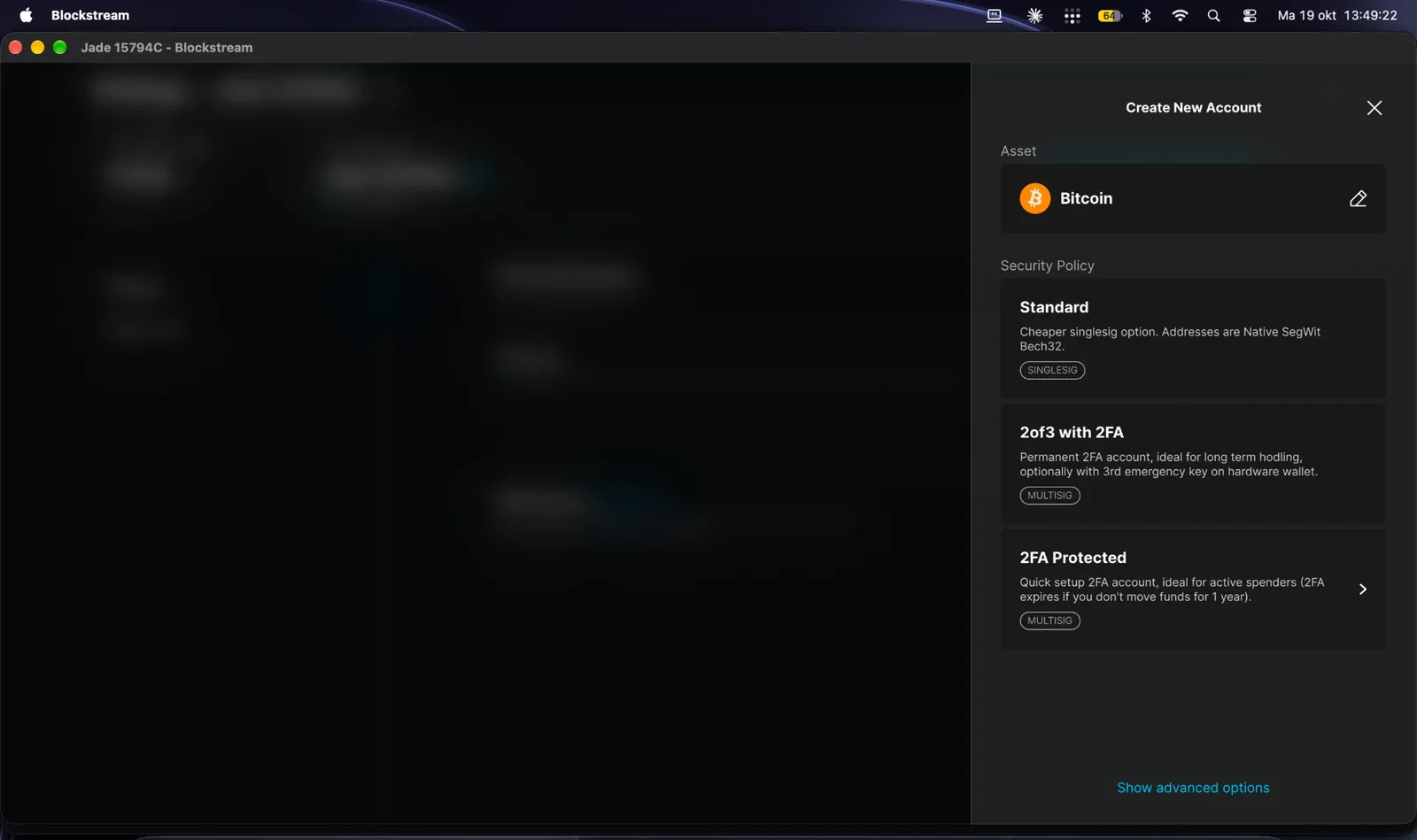
Security policies when creating a new account.
The 2-of-3 option needs a third, emergency key and suits long-term holding, so I did not use it here.
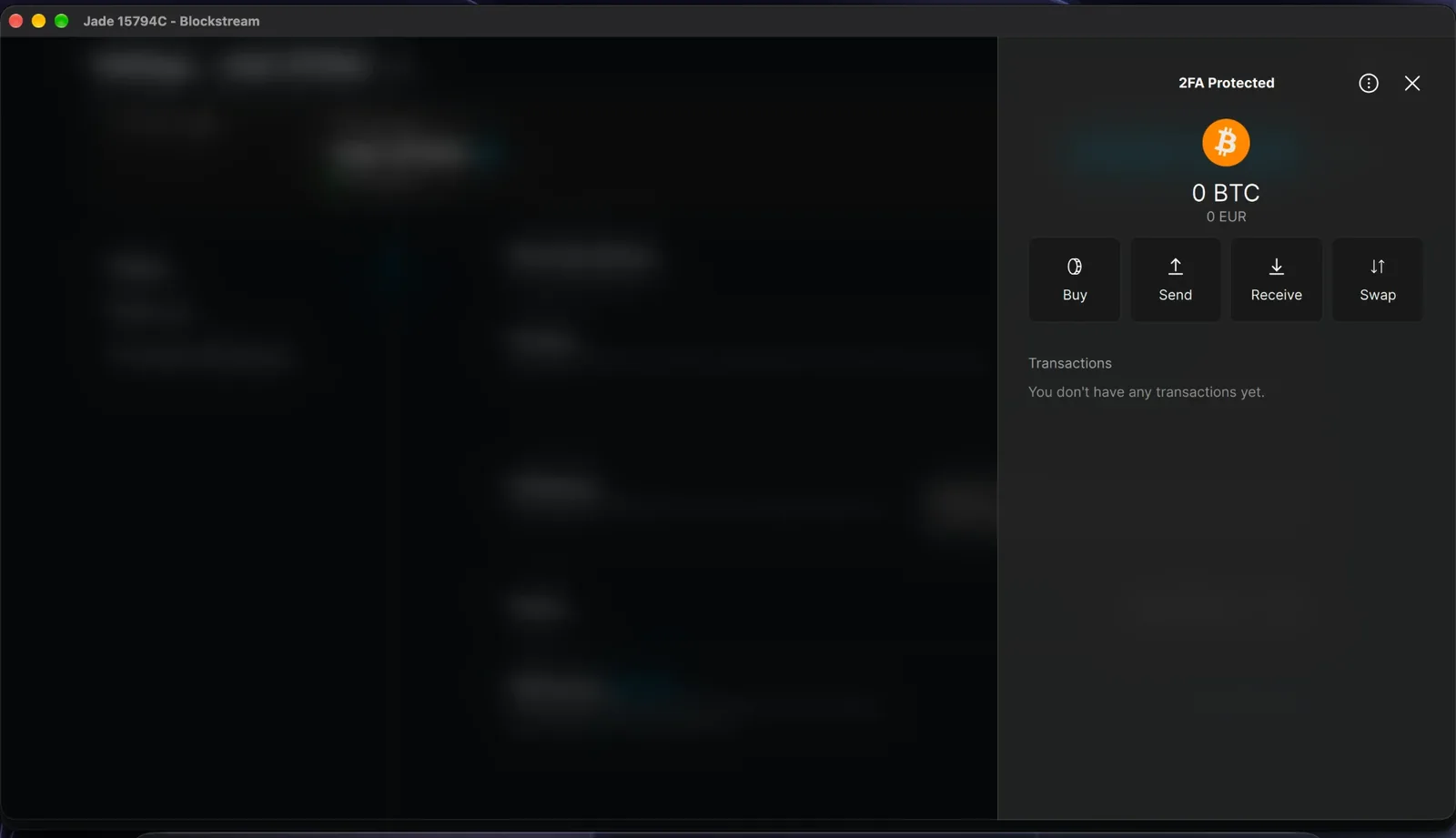
The 2FA Protected account right after creation.
The account is listed as 2FA Protected, multisig 2-of-2. One key lives on the Jade.
Step 5: Turn on two-factor authentication
- Open Settings → Two-Factor authentication.
- Switch on Authenticator app and scan the QR code with your authenticator.
- Enter the six-digit code to confirm.
- Set the 2FA threshold to the minimum, 0.00000001 BTC, so every spend needs a code.
- Leave the 2FA expiry at the default of 12 months.
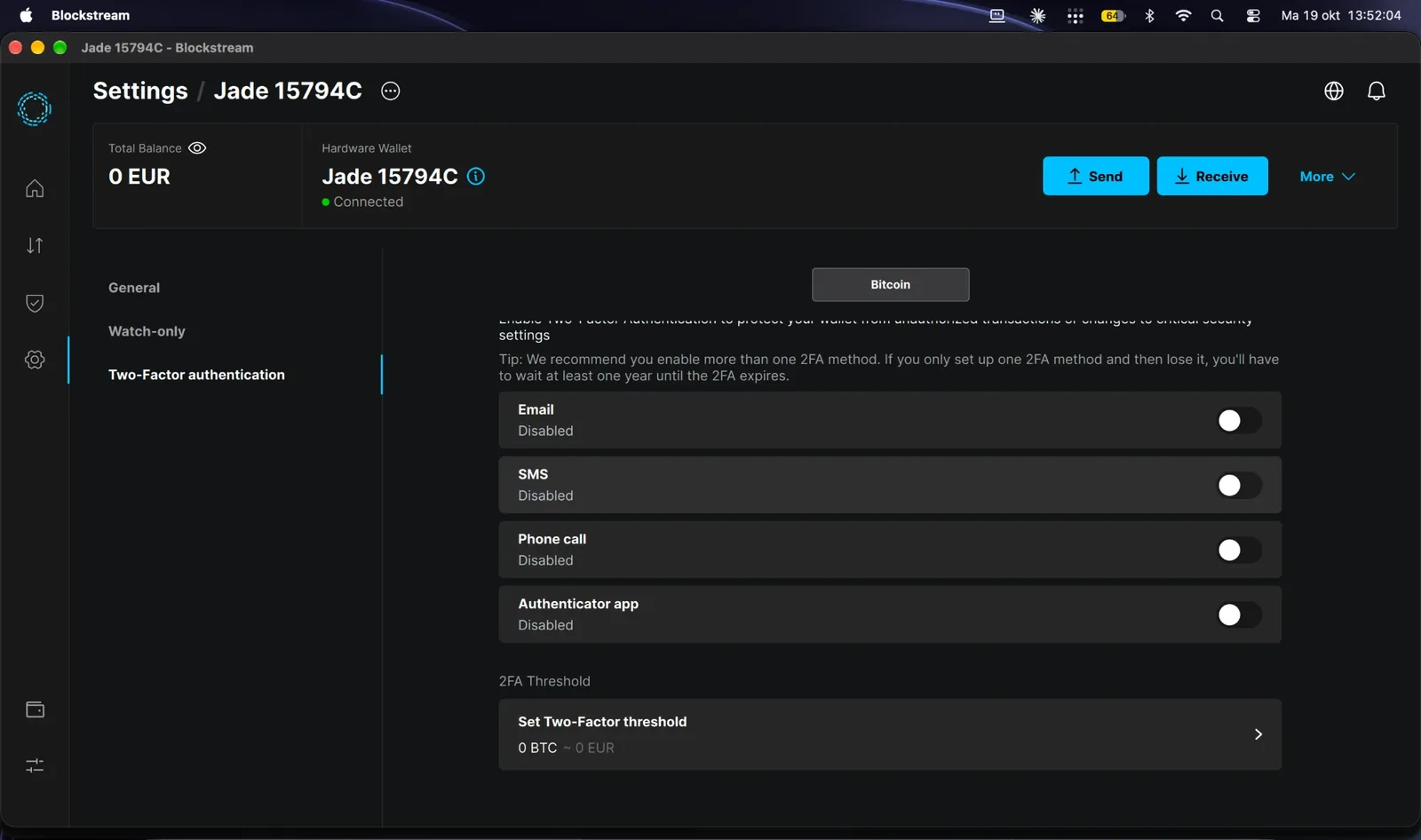
The available 2FA methods before setup. I used the authenticator app.
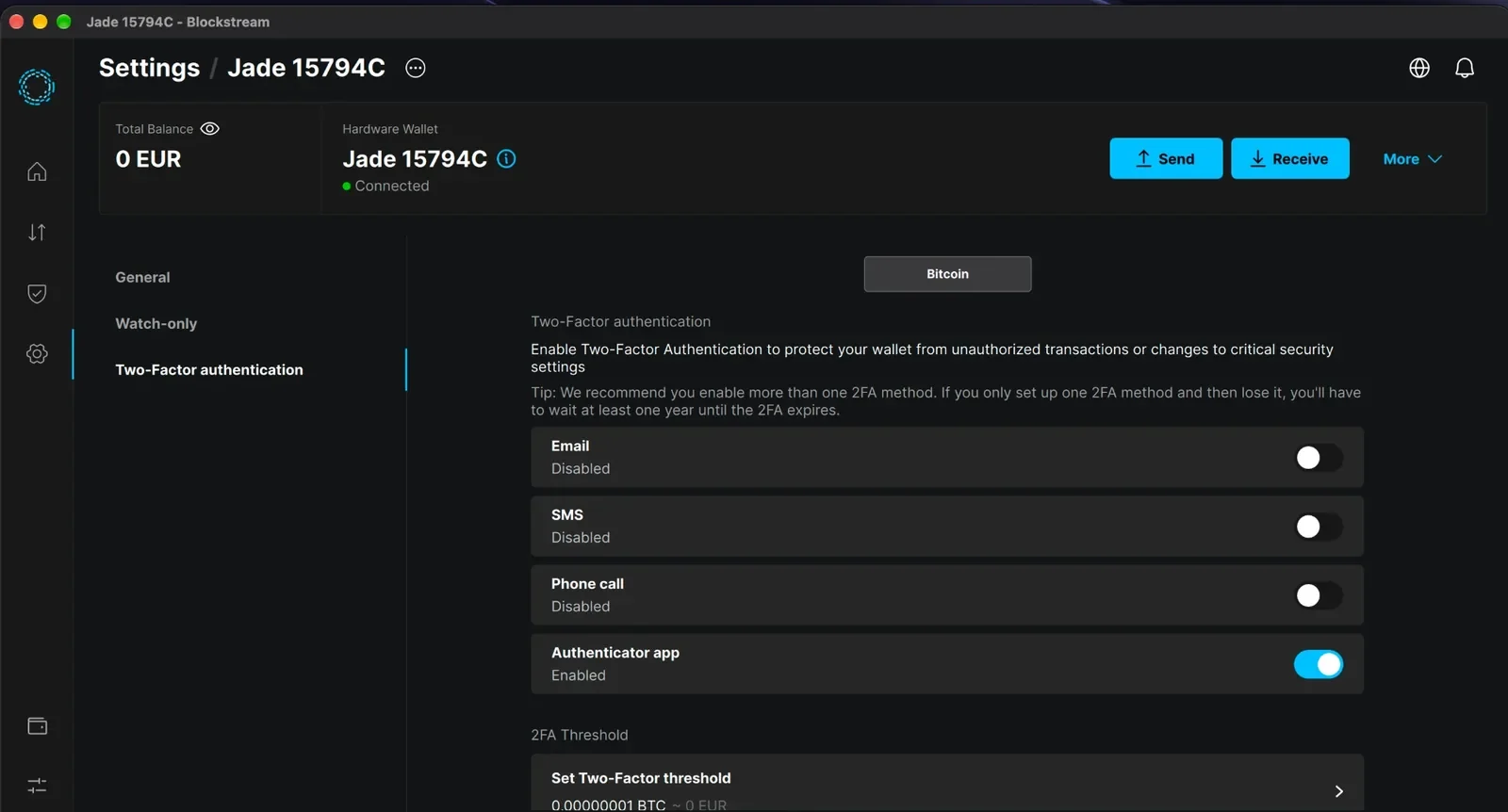
Authenticator app enabled, threshold at one satoshi.
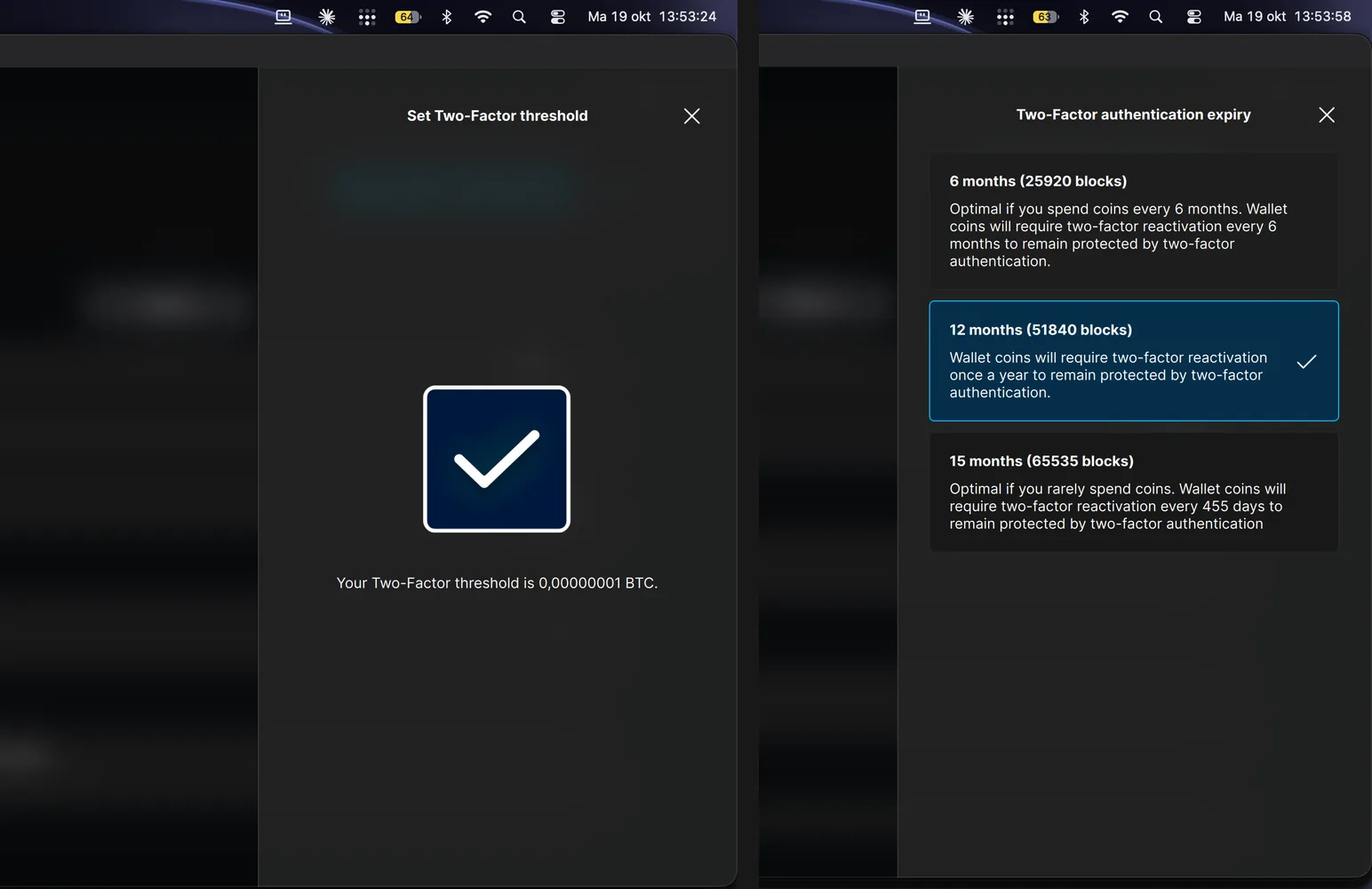
Left: the 2FA threshold is set to 0.00000001 BTC. Right: the expiry options are 6, 12 or 15 months; I kept 12.
Blockstream co-signs only when it receives the code from the authenticator app. The Jade holds the other key.
Step 6: Receive a first test amount
To see the account work with real coins, I sent a small test amount to it.
- Click Receive and choose the 2FA Protected account (multisig 2-of-2).
- Check the receiving address in the app. If the app offers to verify the address on the device, confirm it there too.
- Send a small amount to that address from an exchange or another wallet.
- The transaction first appears as pending, then as confirmed once it is in a block.
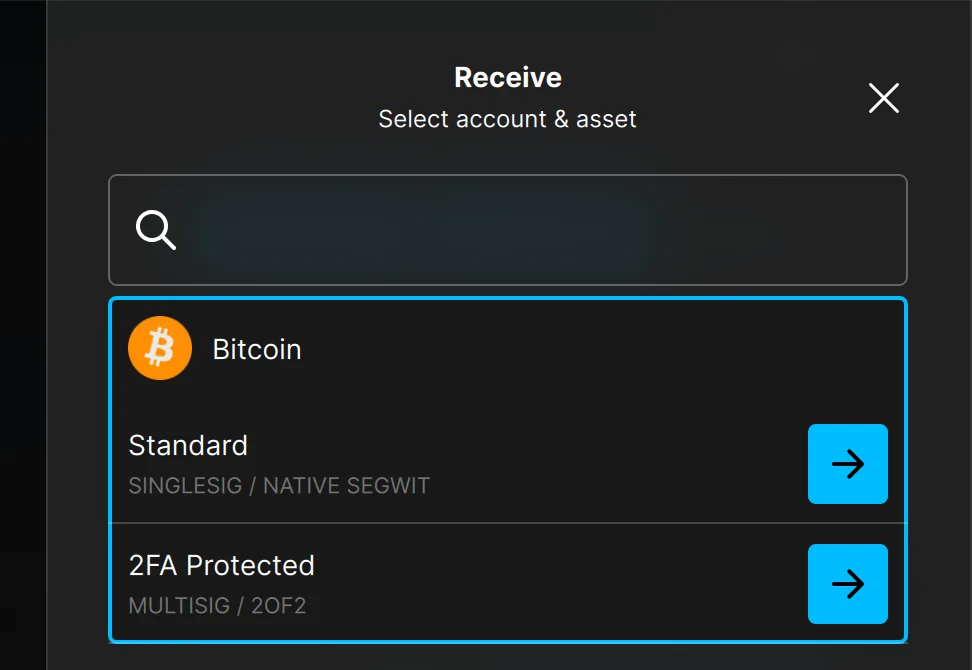
Choose the account to receive on. The test amount went to the 2FA Protected account.
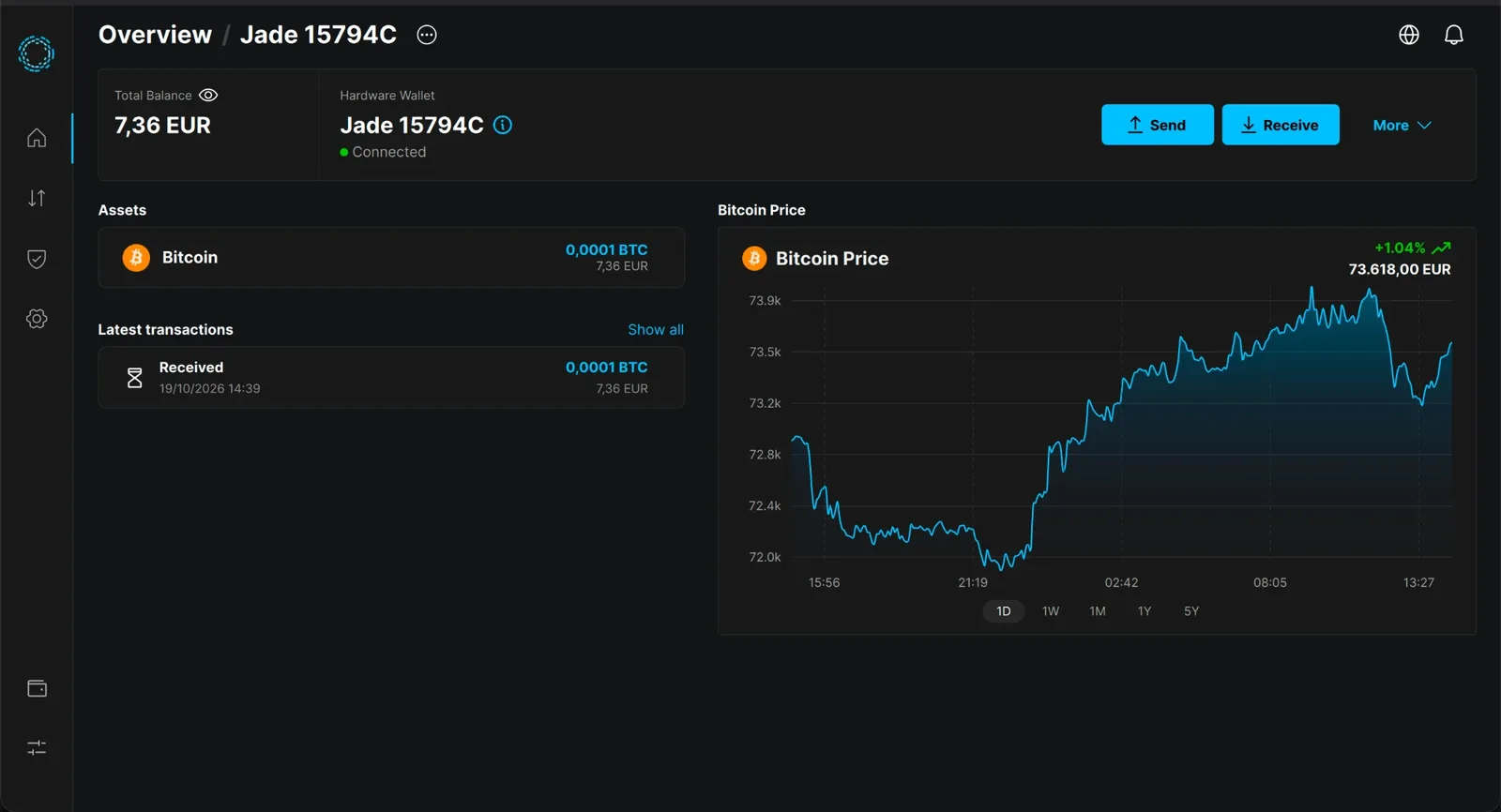
The overview after the test deposit: 0.0001 BTC, about €7.36, with the Jade still connected.
The deposit in the app
Shortly after sending, the transaction showed up in the app as Received and Unconfirmed. Once it is included in a block, the app counts confirmations out of six.
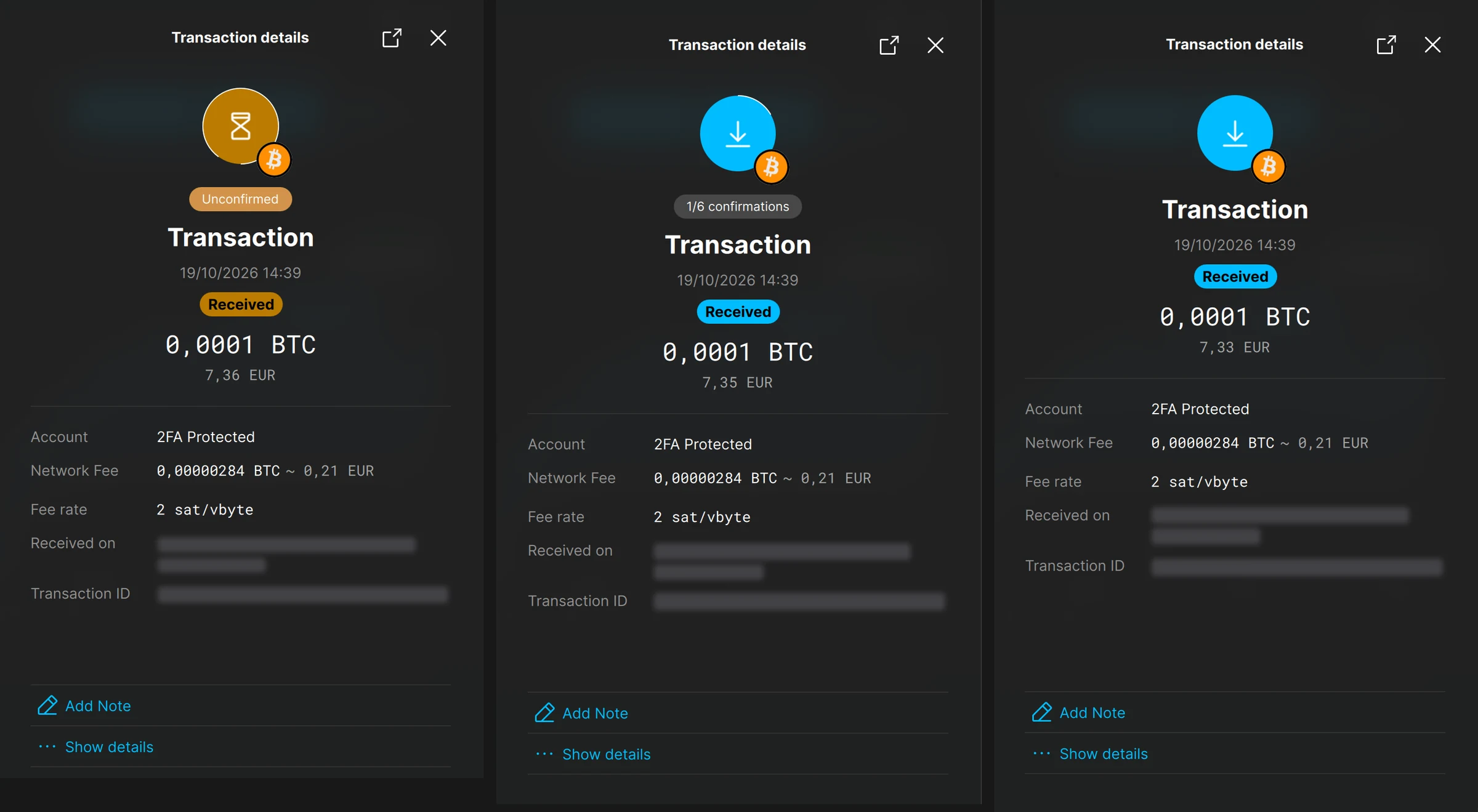
From left to right: unconfirmed, still waiting for a block; 1 of 6 confirmations; confirmed, the pending badge is gone.
The receiving address and the transaction ID are blurred in all three screenshots on purpose.
What I tested
Security: small amounts only
This is a DIY board. I did not enable secure boot or flash encryption, so anyone with physical access to it has more options than with a retail Jade. Only send an amount you are fine with losing, keep the recovery phrase on paper, and never share it or the PIN.
Related: Blockstream app multisig · Blockstream/Jade on GitHub.
Disclosure: Cryptocodes is a partner in Blockstream's affiliate programme. This guide documents my own test on my own hardware.